
In this guide I will try to show how to import an image recognition model based on TensorFlow into Android.
The initial steps for the configuration are not complex.
First of all, to use TensorFlow on Android, you need to download the following repository from GitHub, which contains the project and some Android examples:
https://github.com/tensorflow/tensorflow/tree/master/tensorflow/examples/android
Obviously, to compile and edit the code comfortably you’ll need an IDE; in particular I recommend installing Android Studio, which you can download here:
https://developer.android.com/studio/
Let’s see how to import the sample project. Again, the steps are very simple:
- Extract the TensorFlow archive.
- Open Android Studio and import the project.
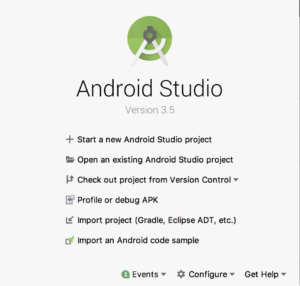
For the import, simply click “import project” and navigate to the extracted folder until you reach the path containing the build.gradle file:
tensorflow-master/tensorflow/examples/android/build.gradle
At this point, double-clicking build.gradle will start the project import process in Android Studio.
Note.
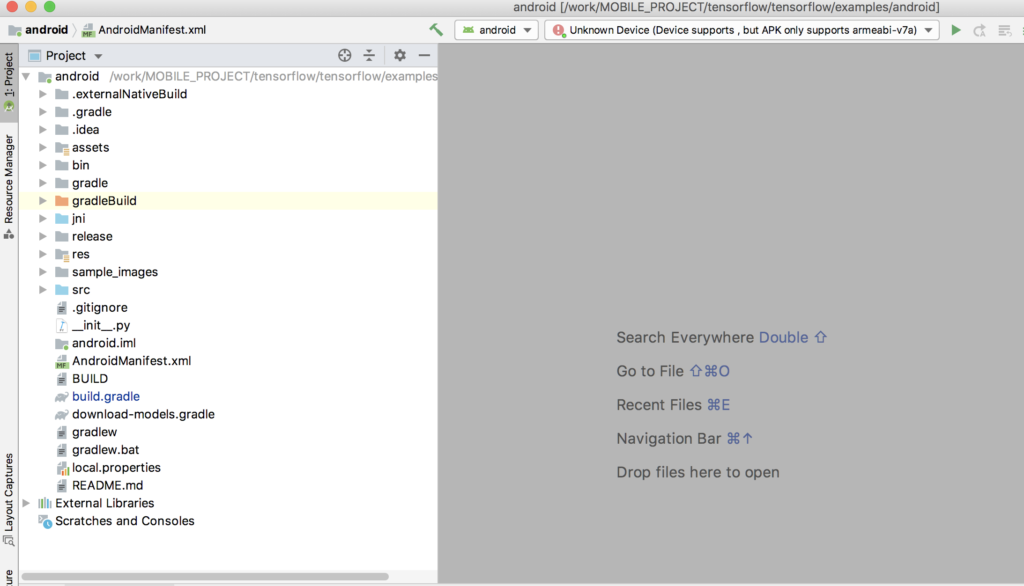
If the import (ADT, Gradle, etc.) does not work, try importing using a different procedure, namely open the sample project as an existing project by selecting the project directory, in our case android. The result should look similar to what is shown in the figure below.
Building the project
Once the import procedure is finished you will find a series of files and folders in the Project.
The first thing to do is open the build.gradle file and modify the following line as follows:
def nativeBuildSystem = 'cmake'
You can then compile the code using the Build -> Make Project command.
A small tip to keep in mind: since some compilation errors remain in Android Studio’s cache and therefore are not resolved between builds, the recommendation to avoid problems is to first run Build -> Rebuild Project, or clear the cache via File -> Invalidate Caches / Restart and then proceed with recompilation.
If the project compilation does not succeed immediately because of missing libraries, simply follow the error messages from the build phase and install the missing dependencies.
At this point you can install the sample app on your device, which will generally allow you to test detection and classification on a pre-trained model, typically the ssd_mobilenet_v1 with the COCO dataset.
To install it on your Android device you can use adb.
After building the project, find the directory where the sample app is deployed—Android Studio usually notifies you of the path—and run the command
adb install <app-name.apk>
Importing a custom model
For our purposes, we need to understand how to export a trained model via TensorFlow for our use, in a format compatible with Android. Regarding training a custom model, I recommend reading the article: “How to train an intelligence …”
Assuming you have successfully trained on your dataset, what do we need to export for Android? It’s sufficient to export the model using the export_tflite_ssd_graph command
The syntax to run will be something like the following, to be modified case by case with the correct parameters. In my case I saved the initial model’s configuration file in training (training/ssd_inception_v3_pets.config) as well as the various training checkpoints (training/model.ckpt-<ckpt>).
The ckpt to consider is obviously the last one and corresponds to the highest value; for convenience I use this command to extract the ckpt value automatically:
ckpt=$( ls -lrt ./training/model.ckpt-*.index| tail -1 | cut -d "." -f3 | cut -d"-" -f2)
and pass it to the model export command for Android:
python3.5 export_tflite_ssd_graph.py
--pipeline_config_path training/ssd_inception_v3_pets.config
--trained_checkpoint_prefix training/model.ckpt-$ckpt
--output_directory=./inference_graph_lite/
--add_postprocessing_op=true
Once the model is exported, you can proceed with importing it. First of all you need to copy the exported files, in particular the model and its associated labelmap, into the “assets” folder located in the project’s root directory. At this point you only need to edit the DetectorActivity.java file and change the following lines as shown:
private static final String TF_OD_API_MODEL_FILE = "file:///android_asset/IMPORTED_MODEL_NAME.pb";
private static final String TF_OD_API_LABELS_FILE = "file:///android_asset/IMPORTED_LABELMAP_NAME.txt";
After editing is complete you just need to recompile the project, recreate the new apk and deploy it to the Android device.
Of course not everything will be so straightforward, so consider this procedure and the article as a starting point to begin navigating this context.
Comments